Adding a tenant
Add a record for someone who already rents from you or a prospective tenant. A tenant record holds the person’s or organisation’s details; it does not create a tenancy. You can attach the tenant to a tenancy afterwards.
Steps
Step 1
From the landlord’s Tenants page, select + Tenant to start a new tenant record.
Step 2
Under Tenant Basics, choose An individual person for a private tenant, or A business or organisation for a company, LLP, partnership or sole trader taking a commercial or business tenancy. Follow only the relevant details step below.
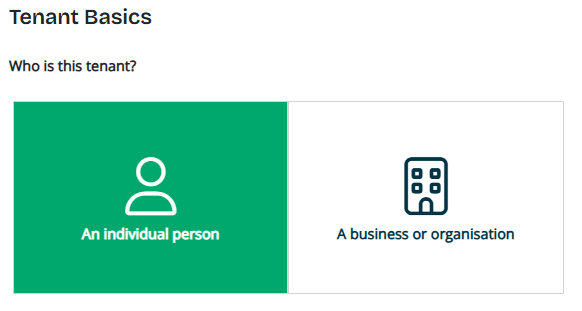
Warning: You cannot change the tenant type after saving. If you choose the wrong type, you will need to create a new tenant record.
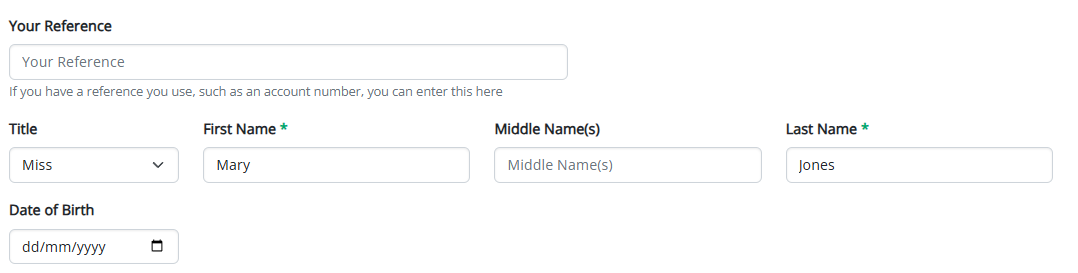
For an individual person, enter their name (first and last name are required) and, optionally, their title, middle names and date of birth
If you chose An individual person, enter the tenant’s First Name and Last Name. You can also add a Title, Middle Name(s) and Date of Birth, but these are optional.
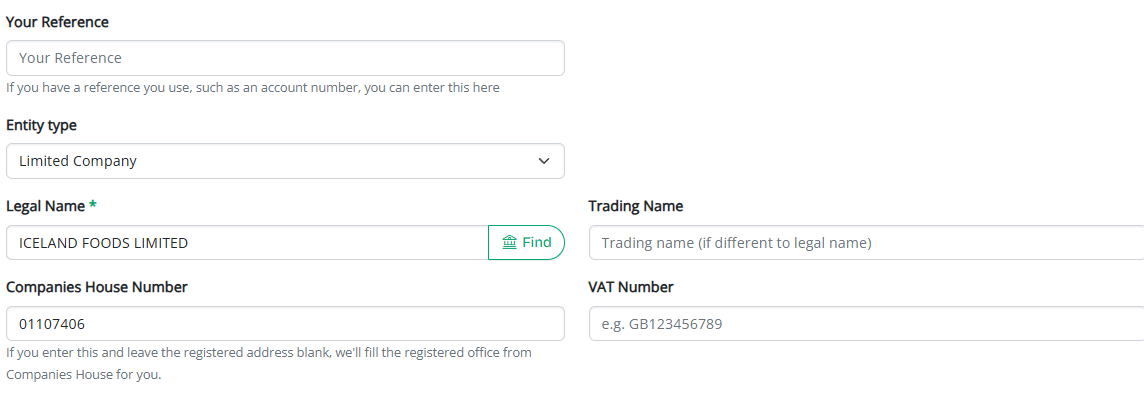
For a business or organisation, select the entity type and enter the legal name. For Companies House-registered entities, use “Find” to look the company up and fill in its details
If you chose A business or organisation, select the Entity type and enter its Legal Name. For a Companies House-registered entity, use Find to look it up and fill in its details; check those details before saving.
Step 3
If useful, add Your Reference for your own account number or other identifier, along with phone numbers and an email address. These details are optional, so you can leave them blank and continue to the address stage.
Step 4
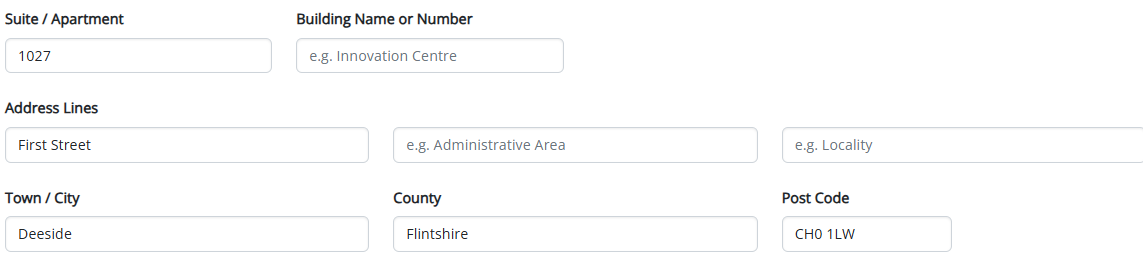
For an individual, add their Current Address if you want to record where they live now, and add a move-in date if you have one. For an organisation, add its registered address if needed; you can leave the address blank and continue.
Good to know:
- When you create a tenancy, the Update each tenant’s current address to this property option is ticked by default. It adds the property to an individual tenant’s address history from the tenancy start date and ends the address they are moving from.
- If you entered a Companies House Number for an organisation and leave its registered address blank, Reoli fills in the registered office from Companies House. Check any details filled in before saving.
Step 5
On Other Details, select Save Tenant to create the record. Reoli opens the new tenant’s record, where you can review their details; you can create a tenancy for them afterwards.
Good to know: You can edit the tenant’s other details later, but not whether they are an individual or a business or organisation.
What you’ll have done
The tenant has a record in Reoli with their required name and any optional details you added. They are not attached to a tenancy until you create or update a tenancy separately.
FAQs
Can I add someone who has not started renting from me yet?
Yes. You can add a prospective tenant now and attach them to a tenancy later.
What if I chose the wrong tenant type?
Create a new tenant record with the correct type. The type cannot be changed after saving.
Do I need an address or contact details to save a tenant?
No. An individual needs a first and last name; an organisation needs a legal name. The address and contact details are optional.
Not using Reoli yet? Everything in this guide is part of Reoli’s property management software for UK landlords.