Importing a company tenant’s contacts from Companies House
Add a company tenant’s current officers as contacts without typing in their details. If the tenant is not yet linked to its Companies House record, you can find the company as part of the import.
Before you begin
- The tenant is saved as a business or organisation with an entity type registered with Companies House.
- You know the company’s name or Companies House number.
Steps
Step 1
From Tenants, open the tenant’s record and select Contacts, then Import from Companies House.
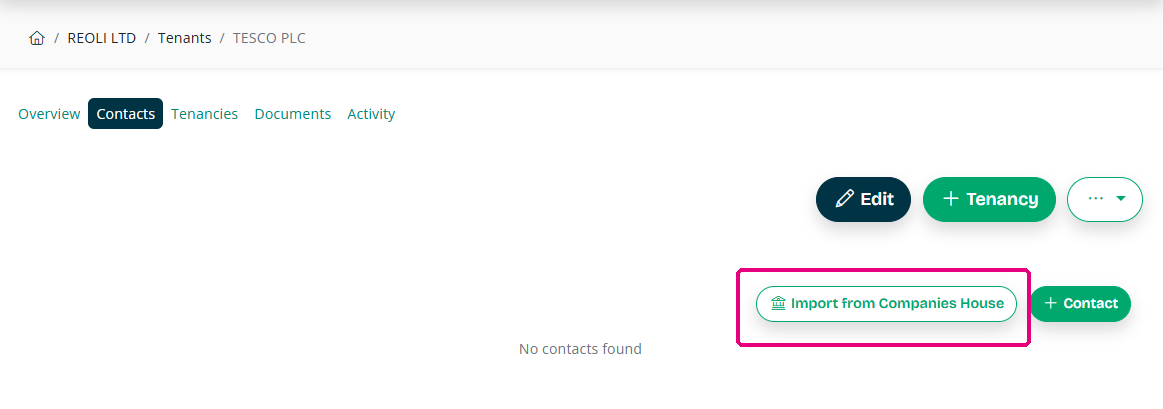
Things to consider: Check the existing contacts before importing: importing the same officer again creates a second contact.
Step 2
If no Companies House number is saved, choose whether to find the company by name or enter its number directly.
- Follow step 3 for a name search, or step 4 if you have the number. You only need one of these routes.
- If the tenant already has a company number saved, go straight to step 5.
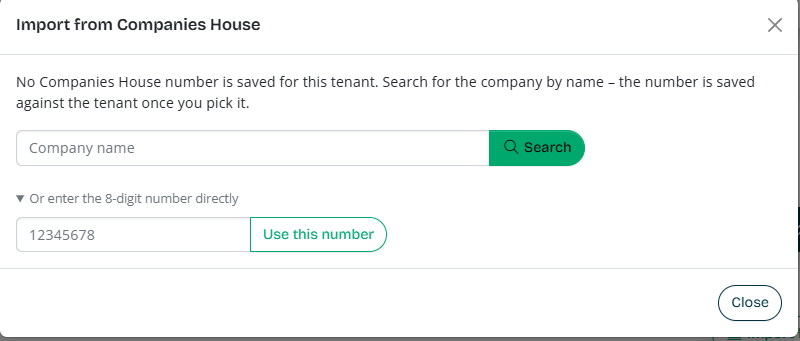
Search for the company by name and pick it from the results
If you are searching by name, enter it in Company name and select Search.
- Pick the correct company from the results to load its officers.
Good to know: Choosing a company saves its Companies House number on the tenant’s record, so you will not need to search again next time.
Things to consider: Check that you have picked the right company before importing its officers.
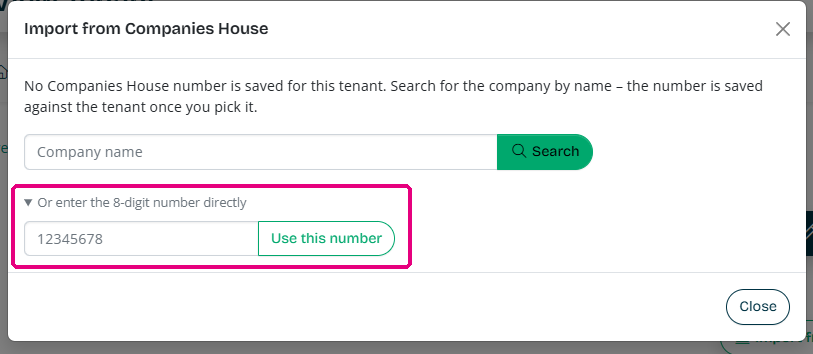
Or open “Or enter the 8-digit number directly”, enter the company number, and select “Use this number”
If you have the company number, open Or enter the 8-digit number directly.
- Enter the number in the field that appears and select Use this number to load the officers.
Step 3
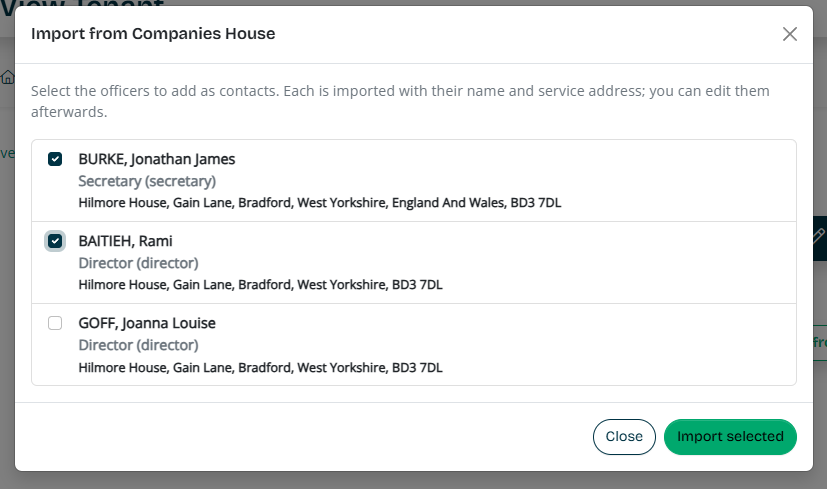
Tick the checkbox beside each officer you want to add as a contact.
- Review the names, roles and service addresses in the list before making your selection.
Good to know:
- Only current officers are listed; officers who have resigned are left out.
- You can import up to 50 officers at once.
Step 4
Select Import selected to create contacts for the officers you ticked.
- Return to Contacts and check the imported names and details.
- Use the Managing a tenant’s contacts guide to amend or delete a contact afterwards.
Good to know:
- Each contact receives the officer’s name, service address and a Role in organisation based on their Companies House role.
- Email addresses and phone numbers are not imported.
Things to consider: Companies House lists names as “SURNAME, Forenames”. Surnames may remain in capitals, and middle names may appear with the first name.
Troubleshooting
- If you see “Could not reach Companies House. Please try again shortly.”, try again later.
- If Import from Companies House is not available, check the tenant’s entity type. This option is only available for business or organisation tenants with an entity type registered with Companies House.
What you’ll have done
The selected current officers are added to the tenant’s contacts with their names, service addresses and organisation roles. Check the contacts and add any email addresses or phone numbers you need.
FAQs
Do I need to find the company every time I import officers?
No. Once you choose a company from the search results, its Companies House number is saved on the tenant’s record. If a number was entered when the tenant was added, the officer list loads without a company search.
Will an officer who has resigned appear in the list?
No. The list includes current officers only.
What happens if I import the same officer twice?
A second contact is created. Check Contacts before importing again.
Not using Reoli yet? Everything in this guide is part of Reoli’s property management software for UK landlords.