Adding and managing units within a property
What is a unit? A property is the building or address; a unit is the house, flat, room or other part that is let. A house let as a whole has one property and one unit, while a block of flats, a shop with a flat above it, or an HMO let room by room has several units within one property. Every tenancy belongs to a unit rather than directly to a property, so every property has at least one unit. Units share the property’s address: a reference such as “Flat 1” or “Ground Floor Shop” tells them apart.
Before you begin
- Add the property before adding another unit to it.
- Accept your team invitation before managing units as a member of a landlord’s team; you do not need to be an administrator to add, change or archive them.
Steps
Step 1
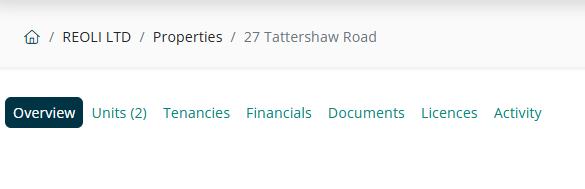
Open Properties from the side menu and select the property. Its Units tab shows the number of units, while the Overview gives a unit total and shows how many are let.
Step 2
Select Unit at the top of the property page to open Add a Unit. Enter a Reference, choose Type as Residential for a place people live in or Commercial for business premises, and optionally enter Rental Value (£/month); leave This unit is available to rent ticked if the unit is let or intended to be let. Select Add Unit to create it.
Good to know:
- Rental Value (£/month) is an optional, typical monthly figure for your own reference. It does not set a tenancy’s rent or create rent demands; see the tenancy guide to set up a tenancy.
- For a commercial unit, VAT Rate (%) appears only when the landlord is marked as VAT registered in Business Details. It defaults to 20% and displays the calculated VAT value beneath it; leave it empty if the unit has no VAT. See “Setting up VAT registration” for the registration setting.
Things to consider:
- Choose Type carefully: you cannot change it while the unit has a current or upcoming tenancy. The type does not choose the tenancy type; you choose that when creating a tenancy.
- Untick This unit is available to rent for space that belongs to the property but is not being let, such as space you use yourself or a unit held back for refurbishment. This marks it Not for rent; it does not prevent a tenancy from being created.
Step 3
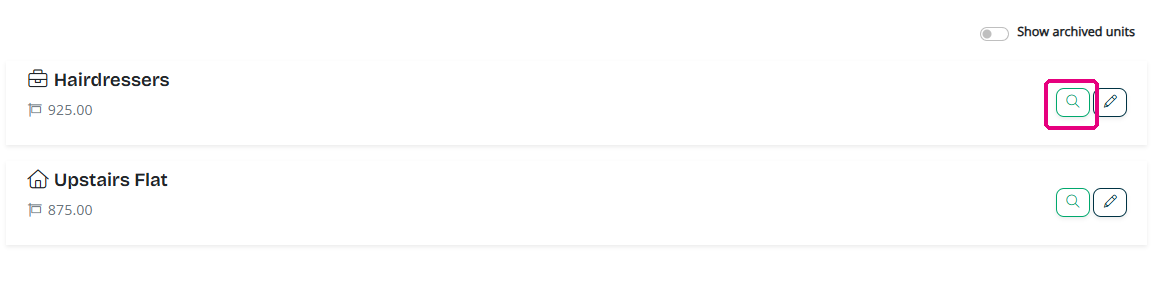
On the property’s Units tab, select the magnifying-glass View Unit control on the unit’s row. Its page opens on Overview, where you can check occupancy, rental details and the unit details recorded so far.
Good to know:
- A rentable unit without a current tenancy shows Vacant and offers Create a tenancy; a unit not marked rentable shows Not for rent. Only rentable units count as let or vacant on the landlord dashboard; the others count as Not for rent.
- A newly added unit can look sparse on Overview because blank features and floor details are not displayed.
Things to consider:
- The + Tenancy button on the unit page starts a tenancy with this property and unit selected; see the tenancy guide.
- Use Tenancies for the unit’s tenancy history, Financials for its financial information and Activity for its activity history. See the respective guides for those areas.
- Use Documents and Licences for records relating to the unit; records added to the property or its local authority also appear on the unit’s tabs. See the documents and licences guides for more.
Step 4
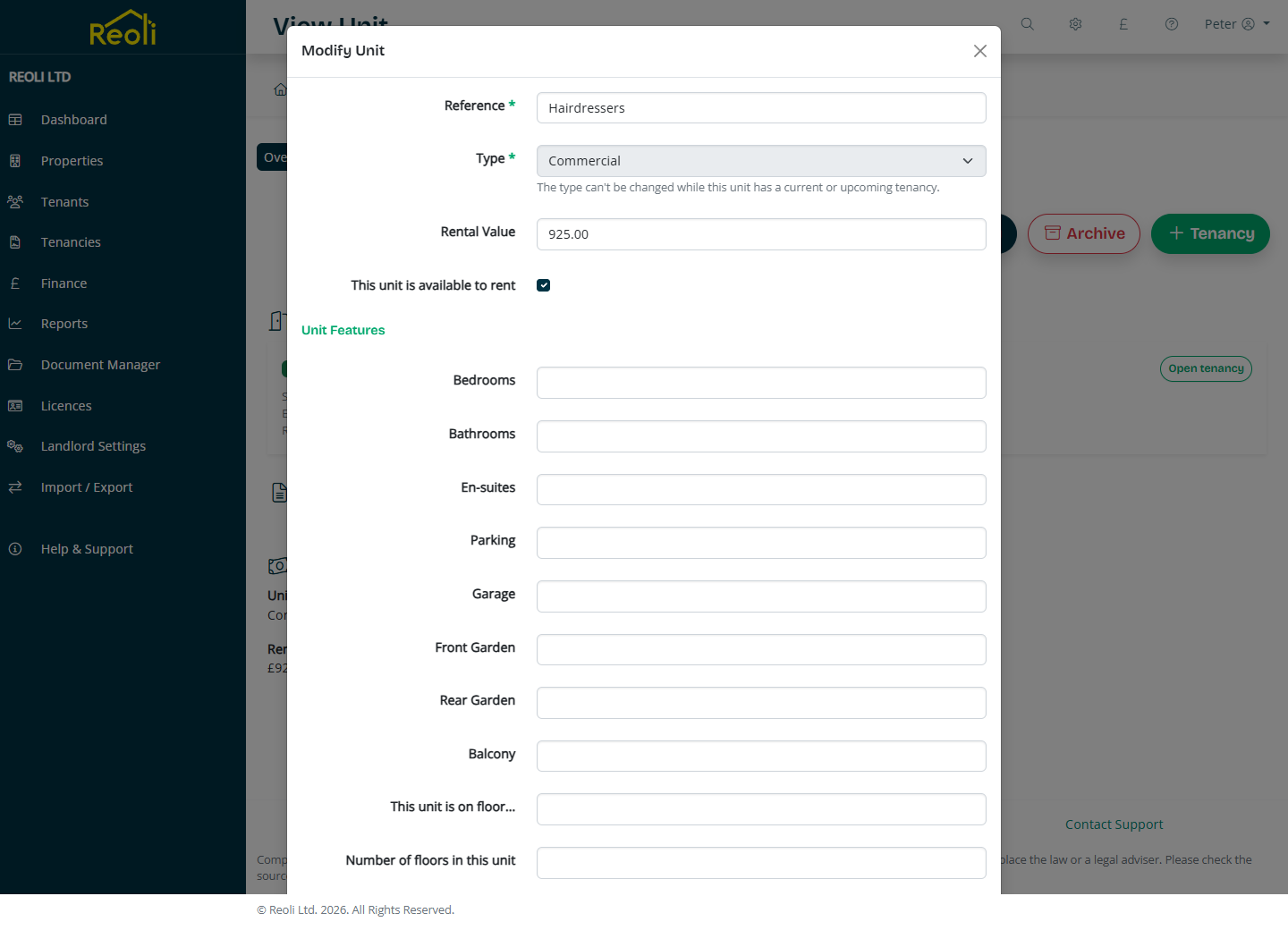
Select Modify on the unit page, or the pencil-shaped Amend Unit control on its row in the property’s Units tab. Update Reference, Type, Rental Value or This unit is available to rent as needed; under Unit Features, record Bedrooms, Bathrooms, En-suites, Parking, Garage, Front Garden, Rear Garden, Balcony, This unit is on floor… and Number of floors in this unit as applicable. Add Short Description and Long Description if useful, then select Save changes.
Good to know:
- You can enter 0 in Bedrooms, Bathrooms or En-suites; leaving a box empty means the number is not recorded. Recorded numbers appear on Overview.
- Feature fields accept free text, such as “Allocated space” in Parking. Clearing a saved rental value, feature or description and saving removes that value.
Step 5
On the unit page, select Archive, then confirm with Archive in the “Archive this unit?” window. Once archived, the unit’s page shows an archived notice and a Restore button; its history remains available.
Good to know:
- An archived unit is left out of normal unit lists and counts, and cannot be selected for a new tenancy. On the property’s Units tab, use Show archived units to include archived units in the list.
- Archiving does not delete ended tenancies or break their link to the unit. You can still open the unit, and search marks it as Archived.
Things to consider:
- Use archive when the unit is no longer let out for good. If it is only temporarily not let, unticking This unit is available to rent in Modify may be more suitable.
- Select Restore on an individually archived unit’s page to bring it back. If the whole property was archived, restore the property instead.
- You cannot archive a unit with a current or upcoming tenancy. Wait until every tenancy on it has ended; the archive request is refused otherwise.
Troubleshooting
- If Rental Value (£/month) or Rental Value is outlined in red and you see “Rental value cannot be negative”, replace the negative figure with zero or a positive figure, or clear the optional field.
- If archiving is refused, check for a current or upcoming tenancy on the unit; ended tenancies do not prevent archiving.
What you’ll have done
The property contains the units you need, with each unit’s reference, type, rental information and optional features recorded. Units you archive are hidden from normal lists and counts without losing their history.
FAQs
Can I record a unit that is not currently available to rent?
Yes. Untick This unit is available to rent and the unit shows as Not for rent. This setting does not block tenancy creation.
Can I change a unit's type after creating it?
Yes, but not while it has a current or upcoming tenancy. Once every tenancy on it has ended, Type can be changed in Modify.
Can I archive a unit that has an ended tenancy?
Yes. Ended tenancies stay linked to the archived unit; only a current or upcoming tenancy prevents archiving.
Can an archived unit be used for another tenancy?
No. Archived units are excluded from the unit picker, and an ended tenancy on an archived unit cannot be given dates that make it current or upcoming again. Restore the unit before creating a new tenancy.
Can I delete a unit I added by mistake?
Only an administrator can use Delete, and the unit must be archived first. Deletion is refused if it is the property’s only unit or if any tenancy, expense, document or licence is linked to it; the message identifies what is linked. You must type the unit’s reference to confirm, and deletion cannot be undone.
Does the unit's rental value set the rent charged to a tenant?
No. Rental Value (£/month) is a reference figure for the unit. Set the rent when creating the tenancy; see the tenancy guide.
Not using Reoli yet? Everything in this guide is part of Reoli’s property management software for UK landlords.