Recording property and unit licences
Every licence on your account - HMO and selective licences, council schemes, and registrations such as Rent Smart Wales can be recorded in Reoli. Reoli keeps a record of the licences you enter and reminds you before recorded expiry dates.
Before you begin
- Have the licence details to hand, including its reference and dates if available.
- To link a copy, upload it first. See our guide to Uploading a general document to a property.
Steps
Step 1
Open Licences from the side menu.
- The page lists current licences across your account, with the soonest expiry first.
- Each property and unit also has a Licences tab for licences that apply to it.
Step 2
Select + Licence, then choose what the licence Covers.

- A property covers one building, such as an HMO licence, and also appears on each of its units; choose its Property.
- A single unit covers one flat or unit, such as one flat’s selective licence; choose its Property and Unit. It also appears on the property, but not on other units.
- Every property under a council covers a council-wide scheme, such as selective licensing; choose the Council from the list grouped by nation. It also applies to matching properties added later.
- Every property in a nation covers a nation-wide registration, such as Rent Smart Wales; choose the Nation.
- The whole account covers something that applies to the landlord rather than a place. It appears on every property and unit.
Good to know: If you start from a property or unit’s Licences tab, that property or unit is already chosen. You can still change Covers if needed.
Step 3
Enter a Title, such as HMO Licence.
- Add the Reference Number from the licence if you have one.
- Enter its Issue Date and Expiry Date if known.
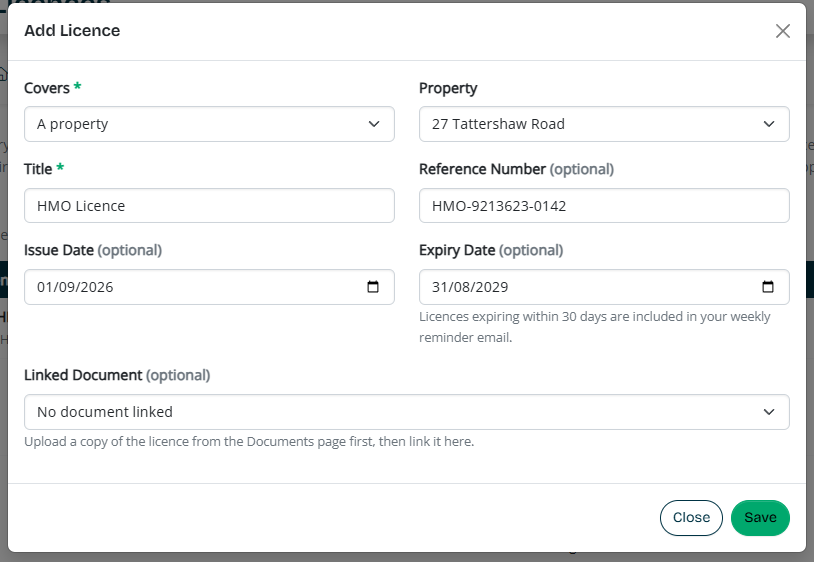
Good to know: Both dates are optional, but Reoli needs an Expiry Date to remind you about this licence. Licences expiring within 30 days are included in your weekly reminder email.
Things to consider: The Title can be up to 150 characters; the Reference Number can be up to 100.
Step 4
Optionally select a Linked Document, then select Save.
- The Linked Document list contains documents already uploaded to Reoli.
- Upload a copy from the Documents page first, then link it here.
- Reoli confirms with “Licence added”, and the licence appears in the list.

Good to know: A licence is a separate record from its document. Uploading a document alone does not create a licence.
Step 5
Open the property’s Licences tab to see what applies to it.
- Each licence is labelled with what it covers. A unit-only licence appears here too, while the unit’s Licences tab shows only licences that apply to that unit.
- A linked copy is marked “Document linked” in the licence list.

Good to know: A council-wide licence appears only when the property’s Local Authority is set to that council. If it is missing, check the property using Edit. A nation-wide licence relies on the property’s nation.
Things to consider: For other property compliance records, use the property’s Overview tab for its gas safety check and Documents tab for documents with expiry dates. See our separate guides for those records.
Step 6
When a licence is renewed, select Add renewal on its row.
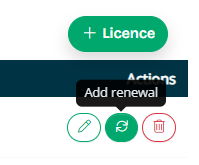
- The Add Renewal window asks you to enter the renewed licence’s details. The current one is kept as a previous licence and will no longer show as expired.
- Enter the new Reference Number, Issue Date and Expiry Date. To link the new copy, upload it to Documents first and choose it as the Linked Document.
- Check the copied Title and change it if needed, then select Save. Reoli confirms with “Renewal added”.
Good to know:
- The renewal keeps the old licence’s Covers choice; it cannot be changed in this window. Its reference, dates and linked document start blank.
- Do not edit the old dates to record a renewal: that would overwrite the old details.
Step 7
Select Show 1 previous licence below the list to view the old record.
- The renewed licence has “Renewal of an earlier licence” beneath its title.
- The old licence is greyed out and marked “Renewed”. The number in Show 1 previous licence changes when there are more previous licences.
- The count above the list includes current licences only.
Good to know: For the next renewal, use Add renewal on the newer licence. A previous licence cannot be renewed again.
Troubleshooting
- If a required box is outlined in red with “Please complete the highlighted field”, enter a Title and choose the property, unit, council or nation required by Covers.
- If you see “The expiry date is before the issue date”, correct the Expiry Date or Issue Date before saving.
- If a council-wide licence does not appear on a property’s Licences tab, check its Local Authority using Edit.
What you’ll have done
The licence is recorded at the scope you chose. With an expiry date, it can appear in expiry reminders; adding a renewal keeps the earlier licence on record as a previous licence.
FAQs
When will I get an expiry reminder?
The weekly email to your account’s email address includes current licences that have expired or expire within 30 days, alongside expiring documents. It links to the Licences page. An expired licence remains in the email each week until you add its renewal.
What do the date labels mean?
A current licence shows “Expires soon” within 60 days of expiry and “Expired” after its expiry date. A licence without dates shows “No dates recorded”.
Where else will an expiring licence appear?
An expired licence appears among dashboard items needing action, where Add renewal opens its renewal window. A licence expiring soon appears among upcoming items; selecting it opens its edit form.
Should I use the pencil to record a renewal?
No. Use Add renewal so the earlier reference and dates stay on record. Use Edit licence to correct a mistake; clearing a saved field there and saving removes its value.
What happens to reminders for an old or archived licence?
A previous licence marked “Renewed” is left out of reminder emails and the dashboard. Licences on archived properties or units are also left out of those reminders and dashboard items, but remain on the Licences page.
Does deleting a licence delete its linked document?
No. The document remains in Reoli. Only an administrator can delete a licence; other team members can add, renew and edit licences.
What if I delete a renewal by mistake?
The licence it renewed becomes current again and may show as expired. To record a renewal, use Add renewal rather than deleting the old licence.
Can I delete a property or unit that has a licence?
No. You can archive it instead. See our property and unit guides for archiving.
Is there a record of licence changes?
Yes. Adding, renewing, editing and deleting a licence is recorded in the activity feed for what it covers, including the fields changed. Unit changes are also recorded on its property.
Things to note
- Reoli does not decide whether a licence is needed, apply for one or contact the council.
- Check with your council if you are unsure what your property needs.
Not using Reoli yet? It keeps certificates and licences with each property, and its weekly digest flags anything expiring.