Creating a landlord account
A landlord account represents the person or organisation that lets property in Reoli. It is separate from your personal login. Create one for the landlord you want to manage, then use its dashboard to start adding properties, tenants and tenancies.
Before you begin
- Register and sign in to your Reoli account.
- Have the landlord’s name and email address ready.
- If the landlord is a limited company or LLP, have its company name or number ready.
Steps
Step 1
From Landlord Accounts, start creating a new landlord account.
Good to know: Use a separate landlord account for each legal entity you manage, rather than using your personal login as the landlord.
Step 2
Choose the landlord’s entity type, then select Next.
- Choose Individual / Sole Trader if you let property as an individual, including when you trade under a different name.
- Choose the appropriate company option if the landlord is a limited company or LLP.
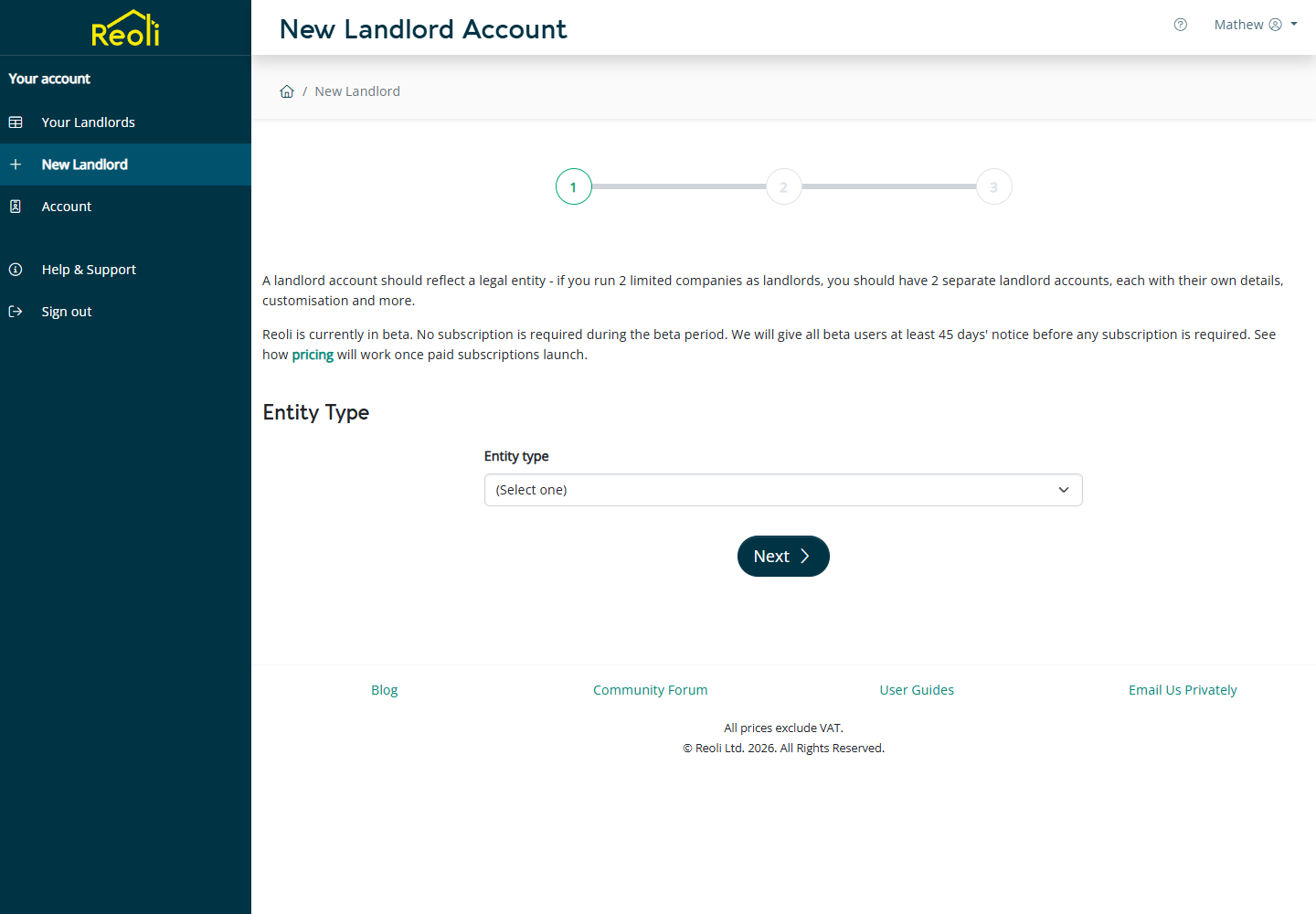
Things to consider: The choice determines whether you enter an individual’s name or search for a company in the following step.
Creating a sole trader or individual landlord
If you chose Individual / Sole Trader, enter your name in Name and select Next.
- If you trade under another name, enter your own name here; Trading Name is a separate field later in the setup.
- Add an address now if you have it.
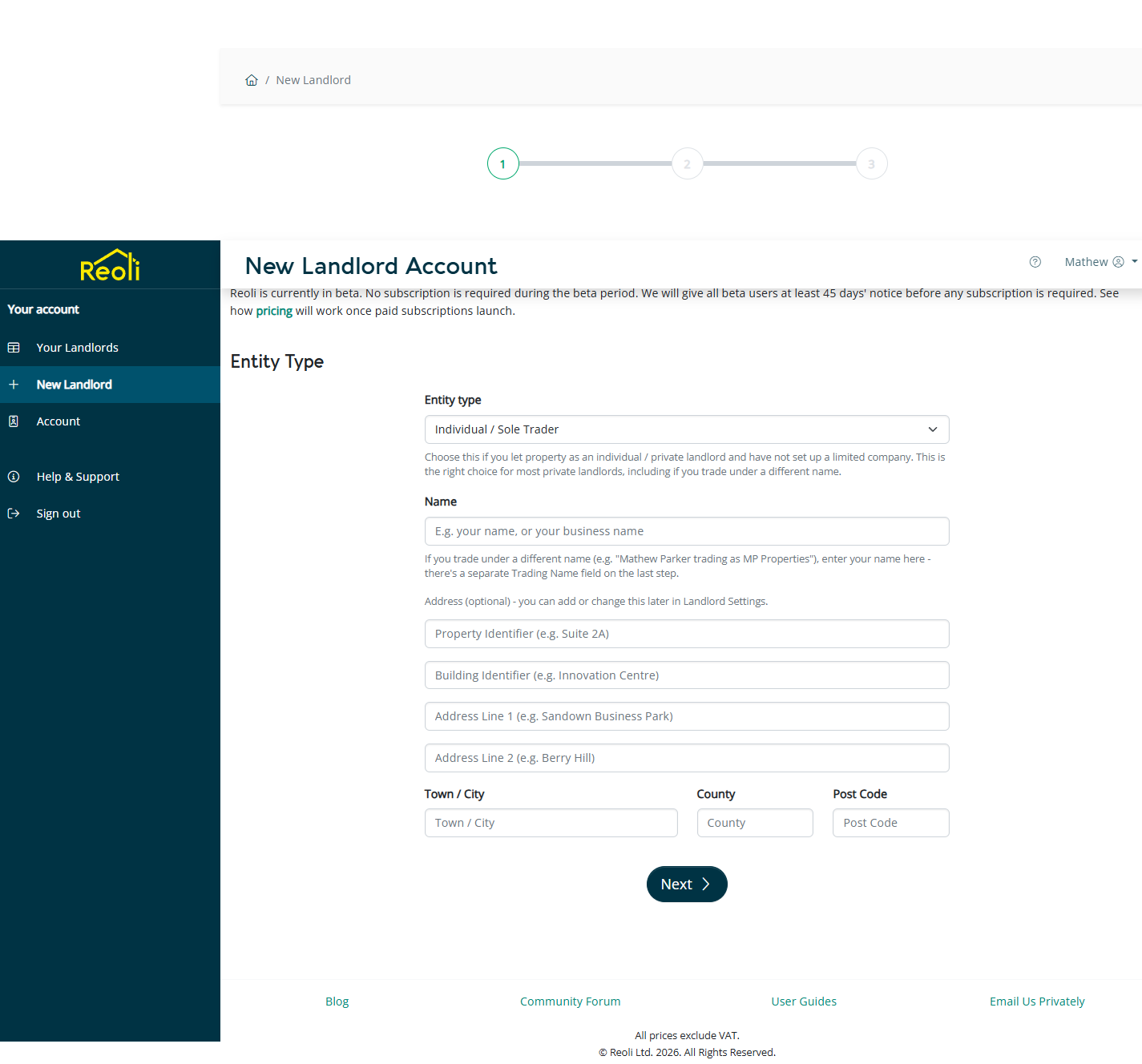
Good to know: The address is optional here and can be added or changed later in Landlord Settings.
Create a limited company or LLP landlord by entering the name or company number
If you chose a limited company or LLP, search for it by company name or number.
- Select Search and check the matching legal name, company number and registered address.
- If it is the wrong company, select Search again; otherwise, select Next.
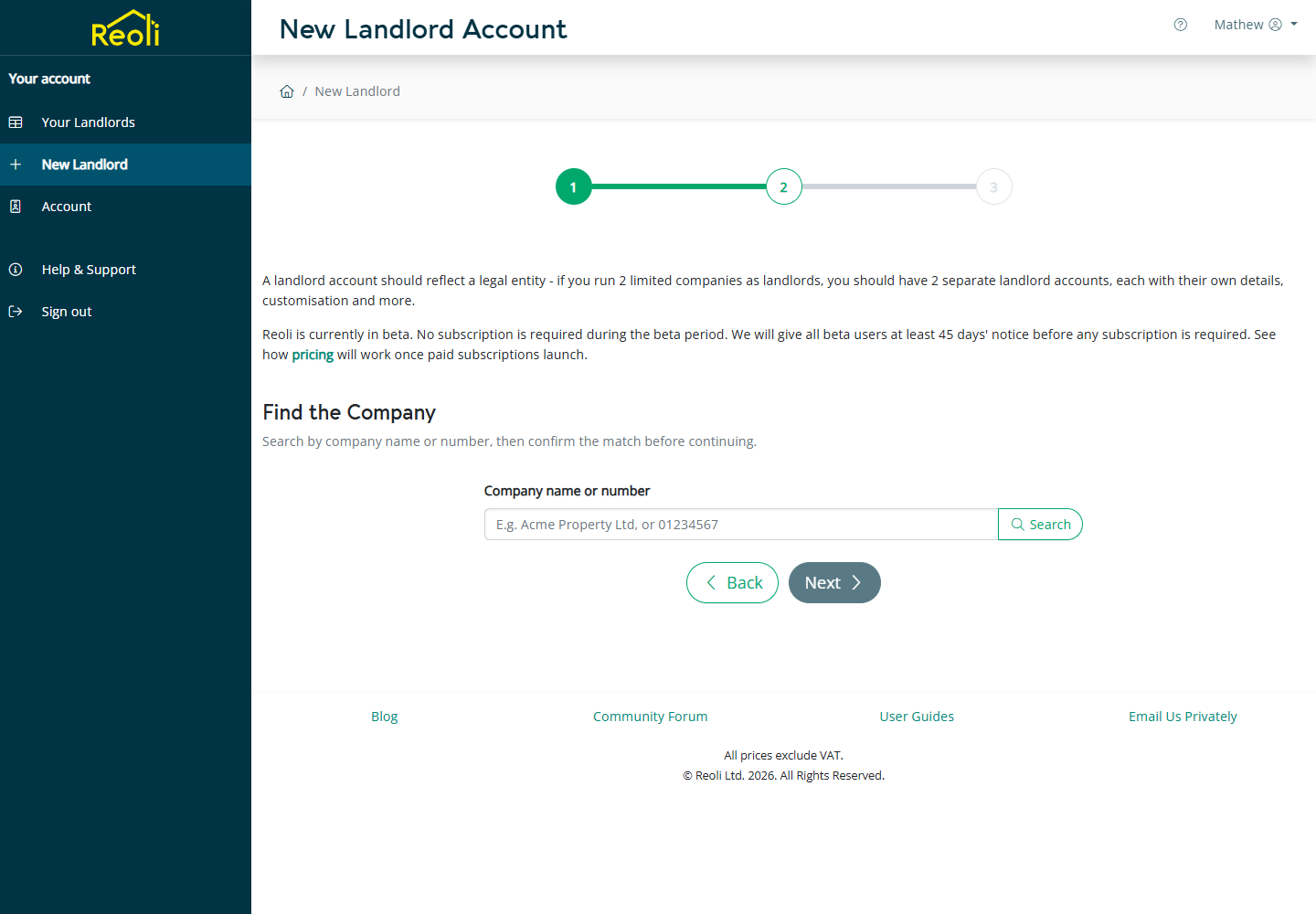
Good to know: The company details used to set up the landlord account can be changed later in Landlord Settings.
Warning: Check the match before continuing so you do not create an account for a different company.
Step 3
Complete the remaining landlord details, including an email address.
- Accept the terms on the landlord’s behalf and state the capacity in which you are accepting them.
Step 4
Submit the completed landlord account to open its dashboard.
- From the Getting started section, you can add a property, add a tenant and create a tenancy.
- A tenancy links a tenant to a rentable unit and records its rent, dates and deposit.
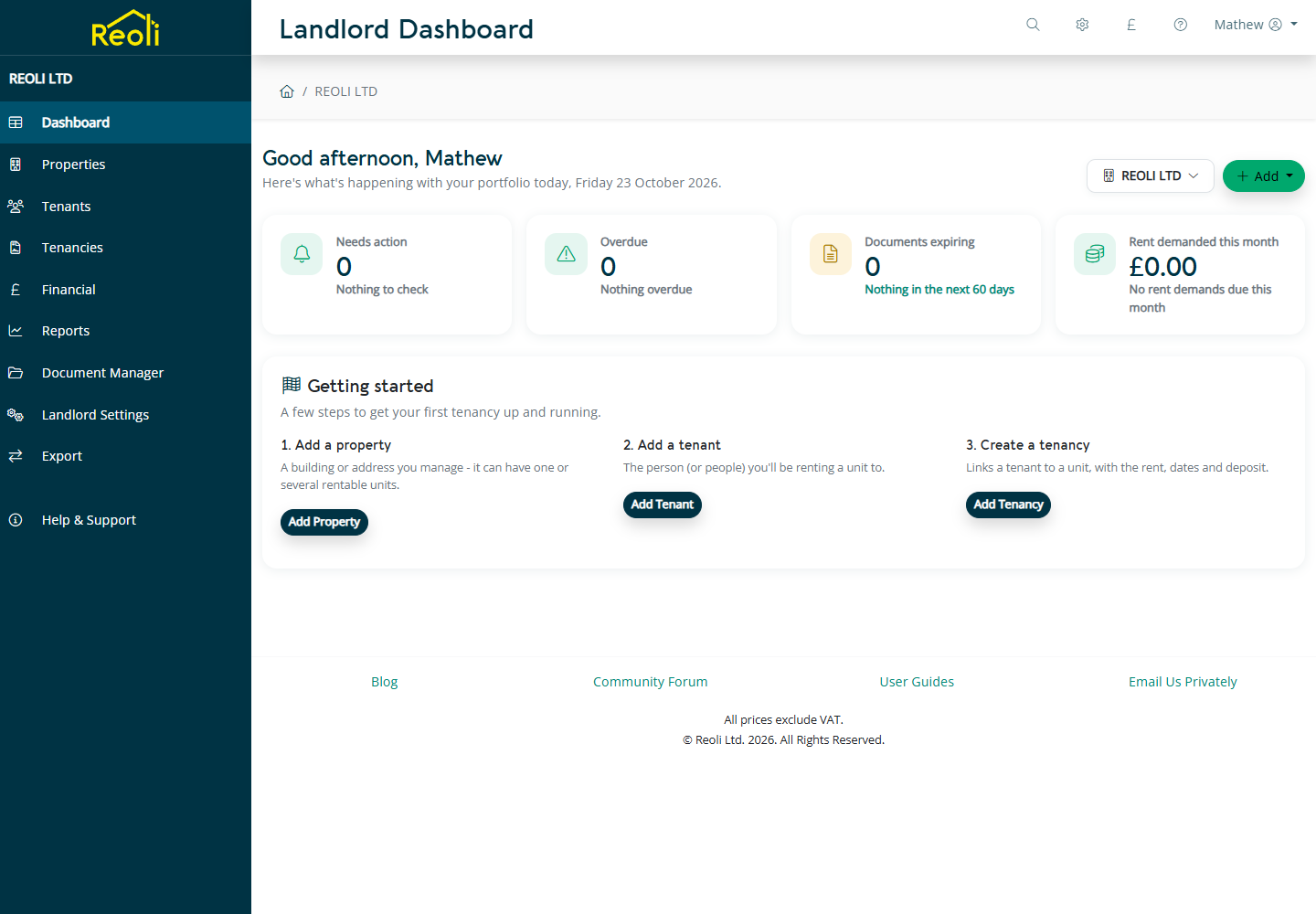
Good to know:
- Your personal login is linked to the new landlord as its owner and a team member.
- You can create another landlord account without creating another personal login.
Troubleshooting
- Found the wrong company? Select Search again and check the replacement match before continuing.
- Dashboard not loading? Reload the page. If the problem continues, contact Reoli support.
What you’ll have done
You have a landlord account linked to your personal login and can use its dashboard to begin building the landlord’s portfolio.
FAQs
Is a landlord account the same as my personal login?
No. Your personal login is linked to a separate landlord account for the person or organisation whose properties you manage.
Can I set up more than one landlord?
Yes. Use New Landlord to create another landlord account under your login.
Can I change the landlord’s address after setup?
Yes. You can add or change an individual landlord’s address later in Landlord Settings. Company details used during setup can also be changed there.
What if a company search finds the wrong business?
Select Search again and check the legal name, company number and registered address before continuing.
Not using Reoli yet? Everything in this guide is part of Reoli’s property management software for UK landlords.