Creating a tenancy
Create a tenancy in the three-step New Tenancy form. Save the property, unit and tenancy dates first, add tenants now or later, then open the tenancy page to add rent and deposit details.
Before you begin
- Add the property and the unit you want to let before starting.
- Make sure the property’s nation is recorded.
Steps
Step 1
Start from Tenancy on the Tenancies page, Add then Tenancy on the dashboard, or Tenancy on a property, unit or tenant page. Starting from a property or unit fills in the relevant property and unit for you.
Step 2
In Tenancy Basics, prepare the property, unit, tenancy type and start date; these are required before you can save. You can also add your own reference and a fixed term end date, or leave those optional fields blank.
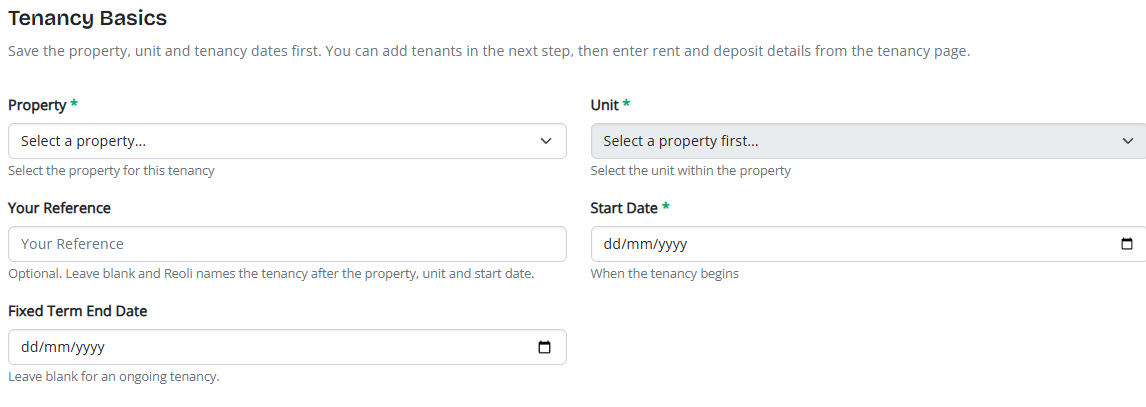
Choose the “Property”, then the “Unit”
Choose the Property, then choose its Unit. The unit list depends on the property you select.

Optionally enter “Your Reference”
If you use your own name or filing code for the tenancy, enter it in Your Reference. Leave it blank and Reoli names the tenancy using the property, unit and start date.

Enter the “Start Date”
Enter the date the tenancy begins in Start Date. This date also helps determine which Tenancy Type options are available.

If the tenancy has an agreed fixed term, enter the “Fixed Term End Date”. Leave it blank for an ongoing tenancy
If an agreed fixed term applies, enter when that term ends in Fixed Term End Date; otherwise, leave it blank. This is not the date the tenancy itself ends: if the tenant stays on, the tenancy carries on.
Good to know: When the selected nation and tenancy type require a periodic tenancy, Fixed Term End Date is switched off and the tenancy is recorded without a fixed term.
Choose the “Tenancy Type”
Once the Unit and Start Date are set, choose the Tenancy Type. The property’s nation appears in a banner, and the available types are filtered for that nation and start date.

Good to know: Changing the property or start date can change the available types; if your previous choice is cleared, choose another Tenancy Type.
Warning: If the property has no nation recorded, set its nation before saving the tenancy.
Select “Save and continue”. The tenancy basics are saved at this point
When the required tenancy basics are complete, select Save and continue. Reoli saves the tenancy before opening the tenant step, so it remains available from Tenancies if you leave the form.
Step 3
At the Tenants step, decide whether to add tenants now or continue without them and add them later from the tenancy page. The unit date-conflict check takes place when the first tenant is added, rather than when the tenancy basics are saved.
Good to know: A tenancy with no tenants is left out of the unit date-conflict check.
Choose a “Primary Tenant”, and optionally their guarantor from “Primary Tenant Guarantor”
If you are adding tenants now, choose a Primary Tenant and, if needed, a contact from Primary Tenant Guarantor. The guarantor choices appear after you choose the tenant, and a guarantor is optional.

Good to know: If the guarantor list says “No contacts recorded for this tenant”, add the guarantor to that tenant’s contacts first; see our guide ‘Managing a tenant’s contacts’.
To add joint tenants, select “Add Another Tenant”, choose each one and optionally their “Guarantor”. Use “Remove” to take a row away
If you are adding joint tenants, select Add Another Tenant and choose each additional tenant, with an optional Guarantor for each. Select Remove to take an unwanted row away; choose each tenant only once.
Good to know: Each tenant can have one guarantor, chosen from the contacts recorded on that tenant.
Leave “Update each tenant’s current address to this property” ticked, or untick it
If you are adding tenants, leave Update each tenant’s current address to this property ticked to add the property to each individual tenant’s address history from the tenancy start date and end the address they are moving from. Untick it to leave their address histories unchanged; organisation tenants keep their registered address.

Good to know: For more about address records, see our guide ‘Managing a tenant’s addresses’.
Select “Save tenants & continue”. Tenants are optional; the landlord can continue without adding any
Select Save tenants & continue whether you added tenants or chose to leave them for later. If no tenants are selected, Reoli continues to Confirmation without adding any; the first tenant added later becomes primary.
Good to know: If your account has no tenants, the tenant step offers a link to create one, but you can still continue without tenants.
Warning: When you add the first tenant, a date conflict with another tenant-linked tenancy on the unit can prevent that tenant from being saved.
Step 4
At Confirmation, review the property, unit, tenancy type, dates and any tenants added, then select Open tenancy. On the tenancy page, add the rent and deposit details that are not part of this form.
Troubleshooting
- If you see “This property has no units. Please add a unit first.”, add a unit before creating the tenancy; see our guide ‘Adding and managing units within a property’.
- If the tenancy basics cannot be saved, read the listed reasons, correct the fields and try again; the form stays available for correction.
- If adding a tenant fails, the tenancy basics remain saved. Correct the problem and retry, or add tenants later from the tenancy page.
- If Reoli reports that the unit has a running tenancy with no end date, record when the existing tenancy ends before adding a tenant to another tenancy for that unit.
- If tenants were added but an address-history update failed, update the affected address history from the tenancy page.
What you’ll have done
The tenancy is saved and available from Tenancies, with any tenants you chose to add. You can open its page to complete the remaining details.
Things to note
Reoli does not offer legal advice. The nation banner and filtered tenancy types do not replace checking that the tenancy meets the law. Add rent and deposit details separately from the tenancy page.
FAQs
Can I create the tenancy before I have added any tenants?
Yes. Save the tenancy basics, continue without tenants and add them later from the tenancy page. The first tenant added becomes primary.
Does the fixed term end date end the tenancy?
No. Fixed Term End Date records when the agreed fixed term ends. If the tenant stays on, the tenancy carries on.
When does Reoli check whether another tenancy uses the unit?
Reoli checks for a date conflict when the first tenant is added. A tenancy without tenants is excluded from that check.
Can I choose someone as a guarantor if they are not in the list?
Add that person as a contact on the relevant tenant’s record first. Each tenant’s optional guarantor is chosen from their own contacts.
Where do I enter rent and deposit details?
Open the saved tenancy page to add rent and deposit details; they are not entered in the New Tenancy form.
Not using Reoli yet? Everything in this guide is part of Reoli’s property management software for UK landlords.