Editing a tenancy and adding tenants to it
Change the details of an existing tenancy, correct its recorded rent, and add or manage tenants. Tenancy details, rent and deposit are edited separately. The names used for tenants and tenancies may differ by nation; this guide uses the English wording.
Before you begin
- The tenancy must already exist.
- Before adding someone to a tenancy, create their tenant record. See “Adding a tenant”.
- Before choosing a guarantor, add that person to the tenant’s contacts. See “Managing a tenant’s contacts”.
Steps
Step 1
On the landlord’s Tenancies page, find the tenancy and select its Edit action. This opens the tenancy with Edit Tenancy ready for you to make changes.

Step 2
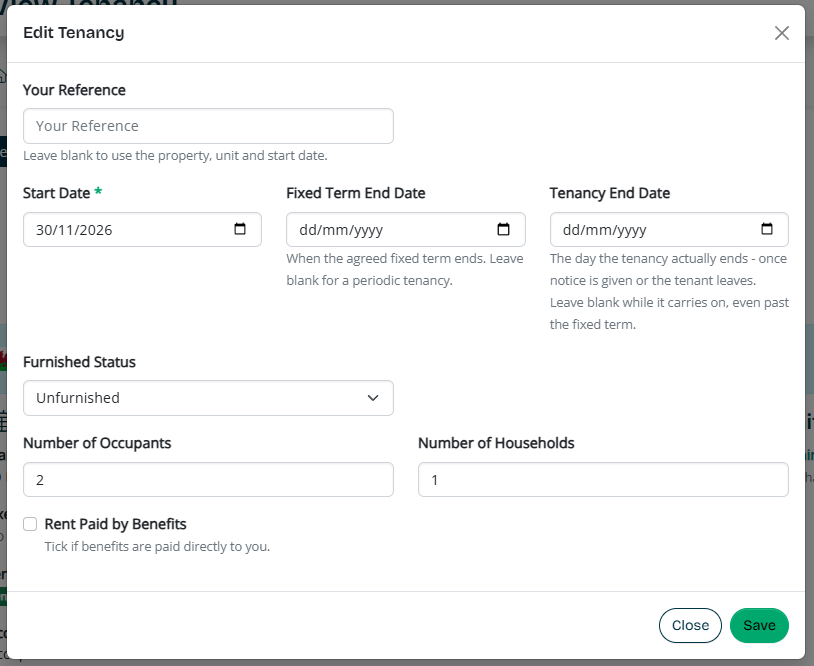
In Edit Tenancy, update the details you need, then select Save. The tenancy type, property and unit cannot be changed here.
- Use Your Reference for your own identifier. If you leave it blank, the property, unit and start date are used as the reference.
- Start Date is required. Fixed Term End Date is when the agreed fixed term ends; leave it blank for a periodic tenancy. Tenancy End Date is the day the tenancy actually ends once notice is given or the tenant leaves, so leave it blank while the tenancy continues, even after a fixed term.
- Use Furnished Status to record how the property is furnished, Number of Occupants for the people living there, and Number of Households for the households. Tick Rent Paid by Benefits if benefits are paid directly to you.
Good to know:
- Where the nation and tenancy type do not allow a fixed term, Fixed Term End Date is cleared and switched off with an explanation. This does not affect commercial leases.
- Furnished Status and Rent Paid by Benefits are not shown for a commercial tenancy.
Step 3
To correct the rent recorded on the tenancy, open Rent & Deposit and select Edit in the Rent section. In Edit Rent, update Rent Amount (£), Rent Frequency or Next Rent Due, then select Save.
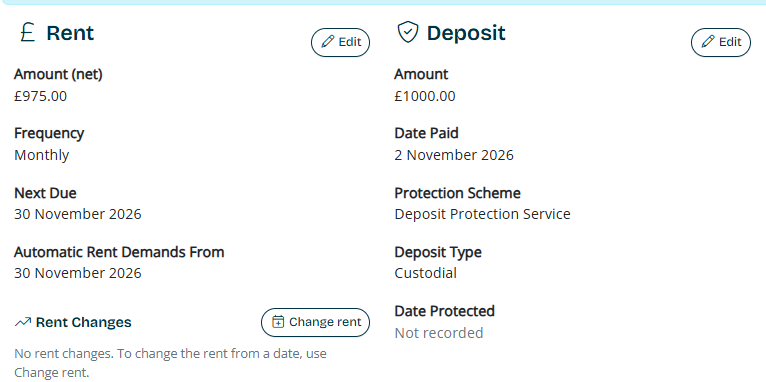
Good to know: The Deposit section has its own Edit action for Edit Deposit. See “Recording deposit protection” for that separate task.
Warning:
- Do not use Edit Rent for an increase or decrease from a later date; use Change rent instead. See “Changing the rent” for rent changes and later corrections.
- Once a tenancy has a rent change, its rent, frequency and next due date can no longer be edited in Edit Rent. Changing the recorded rent here does not change rent demands already raised.
Step 4
To add someone who already has a tenant record, open Tenants on the tenancy and select Tenant. This opens the form for linking that person to the tenancy.
Step 5
In Add Tenant to Tenancy, choose the existing person from Tenant and, if needed, choose one of their contacts from Guarantor. Tick Make this the primary tenant if they should be primary, then select Add Tenant.
Good to know:
- Tenants already linked to this tenancy are excluded from Tenant. “No other tenants available” means every available tenant is already on it.
- Making the new tenant primary automatically demotes the current primary tenant.
Step 6
On Tenants, open the actions menu on the relevant tenant’s card. Choose the action you need for that person:
- Select Change Guarantor to choose a contact from that tenant’s own contacts, then select Save. Choose No guarantor in Guarantor to remove the current guarantor.
- Select Make Primary Tenant to make this person primary and automatically demote the current primary tenant. The primary tenant appears first and has a Primary badge.
- Select Remove from Tenancy and respond to the “Remove this tenant?” confirmation. Their tenant record is not deleted. Tick Also remove this property from the tenant’s address history only if you also want to remove an address this tenancy added.
Good to know: The menu also offers View Tenant and, for an individual tenant, Update Address to this Property. Organisation tenant cards display the organisation’s trading or legal name.
Things to consider:
- The primary tenant has no Make Primary Tenant or Remove from Tenancy option. To remove them, make another tenant primary first; the tenancy must keep at least one tenant.
- For more about a tenant’s address history, see “Managing a tenant’s addresses”.
Troubleshooting
- If Tenant offers “No other tenants available”, check whether the person already has a tenant record and is already linked to this tenancy. See “Adding a tenant” to create a new record.
- If you cannot choose the intended guarantor, add them to that tenant’s contacts first. See “Managing a tenant’s contacts”.
- If Edit Rent says “This tenancy has a rent history, so its rent is changed with Change rent, from the right date”, use Change rent instead. See “Changing the rent”.
What you’ll have done
The saved tenancy details, recorded rent or tenant links are updated as applicable. Changes are recorded on the tenancy’s Activity tab.
FAQs
Can I change the tenancy’s property, unit or type?
No. Those details cannot be changed in Edit Tenancy.
Should I enter a tenancy end date when the fixed term expires?
No. Leave Tenancy End Date blank while the tenancy continues, even after its fixed term. Fixed Term End Date records when the agreed fixed term ends.
Does removing someone from a tenancy delete their tenant record?
No. Remove from Tenancy removes their link to that tenancy, not their tenant record.
Can I remove the primary tenant?
Yes, after making another tenant primary. A tenancy must retain at least one tenant.
Not using Reoli yet? Everything in this guide is part of Reoli’s property management software for UK landlords.