Generating a tenancy statement
View a tenancy’s full financial history on screen, or download it as a PDF or CSV. You can produce a statement for the whole tenancy or choose dates to answer a specific query.
Before you begin
You need access to the landlord account and a tenancy whose statement you want to produce.
Steps
Step 1
Open Tenancies from the side menu, open the tenancy and select the Financial tab. The statement sits below the summary figures and lists each recorded transaction with a running balance.
- Balance is everything charged, less everything paid or written off, including charges that are not yet due.
- Arrears is what remains owed on charges whose due date has passed; an amount above zero appears in red, and the Financial tab shows an arrears badge.
- Total Received counts payments received, but not write-offs or reversed payments.
- Unallocated Credit is money received that has not yet been set against a charge.

Good to know: The Date, Description, Debit, Credit and Balance columns show when each entry was recorded, what it relates to and how it changes the running balance. Rent, deposit and other demands are debits; payments and write-offs are credits.
Step 2
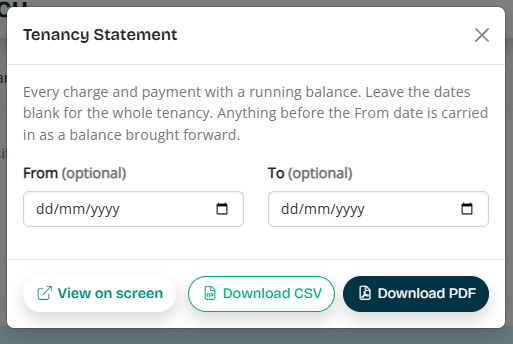
Select Statement to open the Tenancy Statement window. You can also raise demands, record payments and make financial corrections from the Financial tab, but those tasks are separate from producing a statement.

Step 3
Leave From (optional) and To (optional) blank for the whole tenancy, or enter either date or both to limit the statement. Entries before the From date become one Balance brought forward line, so the running balance continues correctly; entries after the To date are left out.
- Brought Forward is the balance carried into the chosen period.
- Charged in Period is the total of demands dated within the period.
- Received in Period is the total of payments received within the period.
- Closing Balance is the balance at the end of the period after its entries have been applied.
Good to know: A dated statement identifies the period it covers above the transaction lines.
Warning: If you enter both dates, From (optional) must be on or before To (optional); otherwise, no statement is produced.
Step 4
Choose Download PDF for a statement laid out with the landlord’s details and logo, Download CSV for a spreadsheet file, or View on screen to open the Tenancy Statement Export report page. The PDF includes the tenants, property, tenancy reference and dates, summary figures and transaction lines; a balance in credit is marked CR.

Good to know: The PDF uses the logo set in the landlord’s branding settings; see our Managing Your Details and Logo guide. Reoli does not send the PDF to the tenant, so you will need to send it yourself.
Step 5
For a statement from the reports area, select Reports from the side menu and open the Tenancy Statement Export card. Choose a tenancy in Tenancy, enter From (optional) and To (optional) if needed, then select Run Report. Once the results appear, you can use Download CSV or Download PDF on the report page.
Good to know: The Tenancy choice is required. With dates entered, the results include a Balance brought forward line and period figures instead of the whole-tenancy summary figures.
Things to consider:
- Things to note: The statement contains only transactions recorded in Reoli; a payment made but not recorded will not appear.
- A voided demand remains in the history with a Void badge but owes nothing and does not change the balance. A reversed payment has a Reversed badge and its cancelling entry has a Reversal badge, so corrections remain visible rather than being deleted.
- A tenancy statement is not a formal notice of arrears. Reoli does not provide financial or legal advice.
Troubleshooting
- If the report does not run, check that you have chosen a tenancy and that the From date is not later than the To date.
- A PDF may open in your browser, or it may download automatically. This is set by your browsers settings rather than Reoli.
What you’ll have done
You have an on-screen statement, a PDF or a CSV showing the recorded demands, payments, write-offs and corrections for your chosen tenancy and period, with a running balance.
FAQs
Can I use just one date?
Yes. Enter From (optional) to include everything from that date, or To (optional) to stop the statement at that date.
Does a write-off count as money received?
No. A write-off reduces the amount owed but is not included in Total Received.
What is in the CSV?
It has one row per statement line, with the date, type, description, debit, credit and running balance. It follows your chosen dates and includes a brought-forward line where needed; summary figures are not included. You can open it in a spreadsheet program such as Excel.
Can I produce a statement for an archived tenancy?
Archived tenancies retain their financial history, and their statements can be produced through the report. The statement identifies the tenancy as archived.
Not using Reoli yet? Every rent demand and payment lands on a live ledger, with arrears tracked automatically.